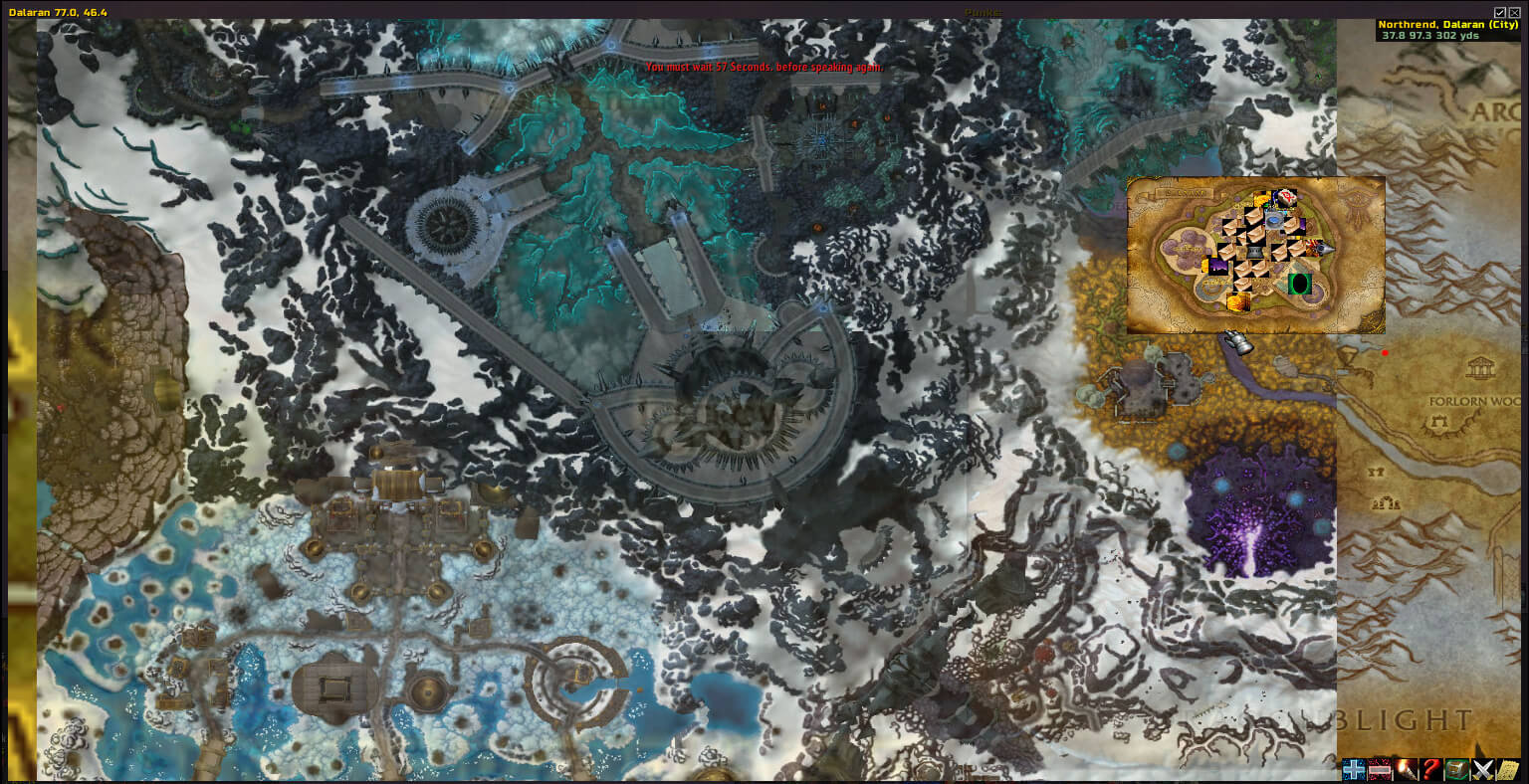
Carbonite 3.34 is a large map and quest-management suite for the WoW WotLK 3.3.5a client. Its core addon adds a separate, zoomable map window and a Carbonite minimap button, while the bundled modules provide item, gathering-node and saved-data support. This is the Carbonite build included in the page archive; it targets interface 30300 and is not a description of newer Retail or Classic releases.
Map, minimap and navigation
The Carbonite map can be dragged, zoomed with the mouse wheel and switched between windowed and full-screen display with M. Its title shows the selected zone, coordinates and movement speed. The map can follow your character, display party or raid members, and show Carbonite users, friends and guild members when that information is available. The minimap button opens the main menu, help and options.
Carbonite's GOTO mode is the navigation feature used to travel to a quest objective, guide point or custom location. A map point can be set from the map menu or with a command; the map keeps you and the destination visible, and the HUD arrow shows the target name, distance and estimated arrival time. Use /carb goto [zone] x y for a coordinate destination, and use the map menu's Clear Goto command to remove an active destination. The original Blizzard map remains available with Alt+M.
Quest tracking and objectives
Carbonite replaces the standard quest-log view with a resizable quest log and watch list. A quest can be added by clicking or Shift-clicking its title, and newly accepted quests can be added automatically. The purple Auto Track control selects a quest objective using the build's priority rules and starts GOTO mode. Clicking an objective button displays its location on the map; the map and HUD then guide you toward that target. The quest database tab can search entries for the current zone, while the History tab records completed quests.
This makes a practical quest workflow straightforward: open the quest watch list, choose Auto Track or select one objective, follow the HUD arrow, and use the map icons to locate quest givers or objective areas. The feature is an objective and location helper, not a replacement for quest text or a guarantee that every custom-server objective exists in the bundled database.
Notes, guide data and Carbonite modules
The Guide window exposes points of interest such as mailboxes, banks and flight paths when the map is zoomed appropriately. Right-clicking a point can start GOTO or copy its name and coordinates into chat. The Favorites system stores notes and targets: a right-click on the map can create a note at that position, while Record mode can save a sequence of destinations. Notes in the Notes folder can be shown automatically when the matching zone is selected.
- CarboniteItems supplies item data for the included build.
- CarboniteNodes contains herbalism and mining locations that can be imported through the Guide page of the options window.
- CarboniteTransfer transfers recorded Warehouse data between accounts through its saved-variable file.
The Warehouse records equipment, inventory, bank and profession information for characters after those windows have been opened. It is useful for checking which character owns an item, but it is not a live account-wide inventory service: each character's data must first be recorded. The Social window adds Pals and Punks tabs. Pals track friends across characters; Punks records manually added or detected enemy players and marks recent detection areas on the map.
Confirmed commands and setup
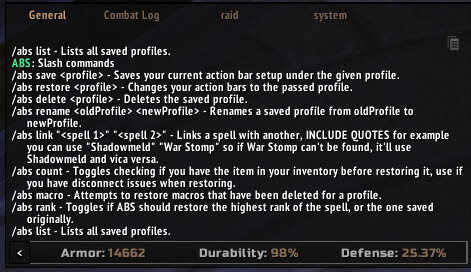
The archive registers /carb and /Nx. With no argument, the command help lists supported actions such as goto, menu, note, options, resetwin, rl, track, winpos, winshow and winsize. Window position, size, scale, lock and transparency are adjusted from the window menus or Carbonite Options, and the layout is saved. The build has no evidence of modern Carbonite features beyond the modules shipped in this archive.
Installation
- Close WoW and remove an older Carbonite folder before installing the new archive.
- Extract the included
Carbonitefolder into the client'sInterface/AddOns/directory. Keep the separate module folders if you want their confirmed data features. - Enable Carbonite and its modules at character selection, then open the map and minimap menu to verify the installation.