legacy-wow.com: legacy-wow.com/wotlk-addons/titan-panel/
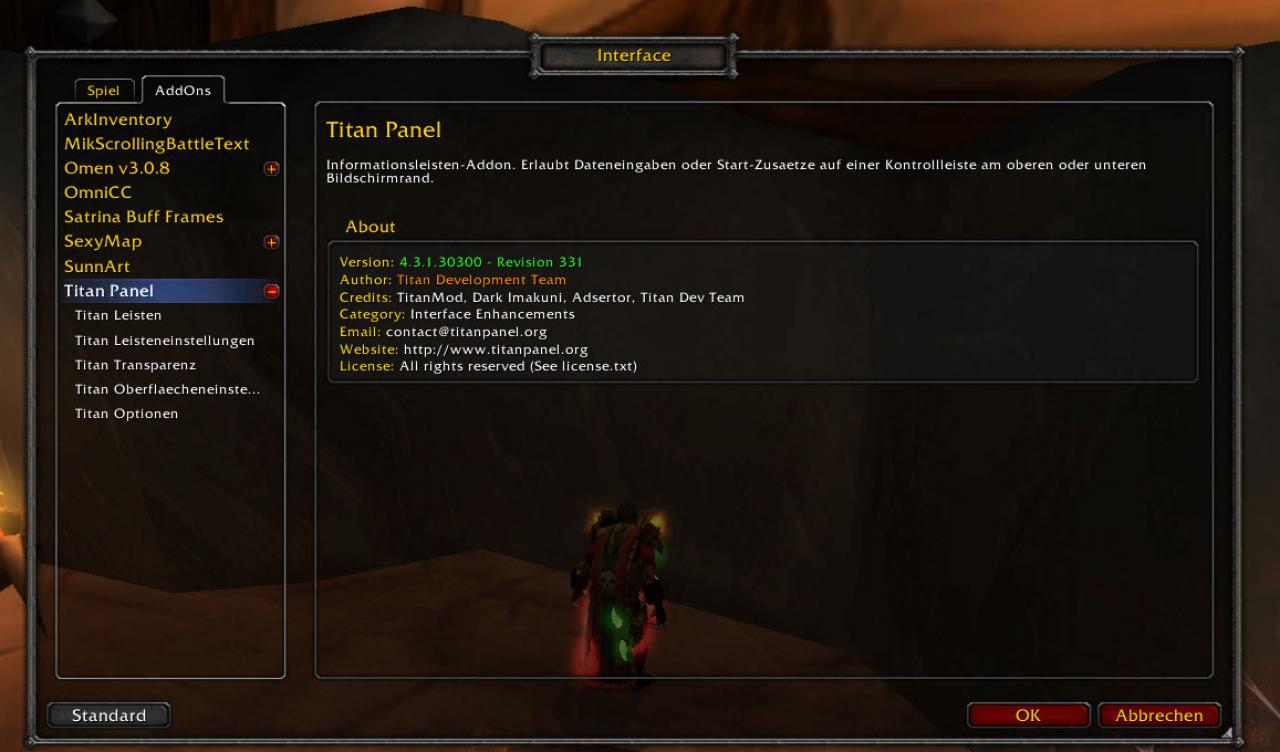
Titan Panel is a persistent information-bar framework for the WoW WotLK 3.3.5a client. The attached package is Titan Panel 4.3.8.30300 - Revision 386 with interface version 30300. It adds a bar at the top, bottom, or both positions of the screen and gives plugins a consistent place to show compact information or launch related actions.
What the panel can display
The archive includes separate Titan plugins for several everyday data sources. The built-in set covers ammunition, bag slots, clock, coordinates and location, gold tracking, loot type and instance difficulty, performance, regeneration, repair, volume, and experience. For example, the Bag plugin can keep free bag-space information visible, Coords can show location data, Gold Tracker can compare gold held by characters on a server and faction, and Performance exposes FPS and garbage-collection information.
These are plugin values rather than one large status window. Hovering a plugin can open its tooltip, while clicking a plugin can expose the actions or details provided by that module. The panel is therefore useful for information that you want available while questing, travelling, preparing for a dungeon, or managing inventory.
Plugins and extension support
Plugins are separate addon folders that depend on the Titan core. In this 3.3.5a archive, the supplied modules declare Titan as their dependency and register themselves with the panel. Titan also contains a LibDataBroker-to-Titan bridge, so compatible LDB data objects can be represented as Titan buttons when another installed addon provides them.
Only plugins that are actually installed and compatible with this client will appear. Do not assume that a current retail Titan plugin will work with this package: the included modules are the ones tested against the archived interface build, while third-party modules must match the 3.3.5-era API.
Panel layout and display controls
The configuration exposes separate controls for the main bar and the auxiliary bar. You can place the main bar at the top or bottom, enable both bars, choose a single or double bar layout, align plugin text, and enable auto-hide. Panel scale, button spacing, font, font size, frame strata, skin, transparency, and tooltip transparency are also configurable. The screen-adjust options move Blizzard frames when the panel occupies space, which helps prevent the bar from covering the minimap, bags, chat, or other standard UI frames.
Plugins can be shown or hidden and arranged on the available bars. The plugin control pages also provide reset and management actions. If the interface becomes too crowded, keeping only the clock, coordinates, bag space, durability, and one or two character-specific indicators usually leaves the bar readable without removing the addon.
Useful WotLK workflows
- While levelling or farming, keep coordinates, clock, bag space, and the current gold total visible so map notes and inventory capacity are available without opening several frames.
- Before a dungeon or raid, use the repair, bag, loot-type, and instance-difficulty plugins to confirm practical preparation details at a glance.
- During long sessions, the XP plugin can show experience progress and time-to-level information, while the clock and volume controls remain accessible from the same bar.
- When diagnosing a UI problem or a heavy addon setup, the Performance plugin provides FPS and garbage-collection information that can be checked without opening a separate meter.
Confirmed commands and menus
The package registers /titan and /titanpanel. With no recognized argument, the addon prints its help. The confirmed commands are:
/titan resetresets the panel to its default values and position./titan reset tipfontresets tooltip font scale./titan reset tipalpharesets tooltip transparency./titan reset panelscaleresets panel scale./titan reset spacingresets button spacing./titan gui control,/titan gui trans, and/titan gui skinopen the corresponding Ace3 control windows.
The same settings are available through Titan's right-click menus and Blizzard's addon options. Reset commands change saved layout values, so use them when you intentionally want to return to defaults.
Limitations and troubleshooting
- If a plugin is missing, first check that its separate folder is directly inside
Interface/AddOnsand that the Titan core is enabled. The core alone does not automatically provide every optional data module. - If the bar overlaps the minimap, bags, chat, or action bars, review the relevant screen-adjust options and the bar position. A second or double bar also changes how much vertical space the interface needs.
- If a plugin loads but shows no useful value, its data may depend on the current character, zone, group state, inventory, or an API event that has not fired yet. Open its tooltip after logging in and moving through the relevant state.
- If tooltips are not visible, check the global tooltip setting and the option that hides tips during combat. A plugin can still be present on the bar while its tooltip is suppressed.
- If another addon does not appear as a button, it must expose a compatible LDB object or provide its own Titan plugin. Titan Panel cannot convert an arbitrary addon into a panel entry automatically.
This is a legacy WotLK 3.3.5a build. Its included plugins target interface 30300; modern retail or later-expansion plugins may require APIs and data that are not available on this client.
Installation
- Download the ZIP archive and extract the
Titancore and the included plugin folders directly intoWorld of Warcraft/Interface/AddOns. - At character selection, enable
Load out of date AddOnsif the 3.3.5a client marks the package as out of date. - Log in, right-click the bar or open the Titan Panel options, then enable only the plugins and bar positions you want to use.