legacy-wow.com: legacy-wow.com/wotlk-addons/tomtom/
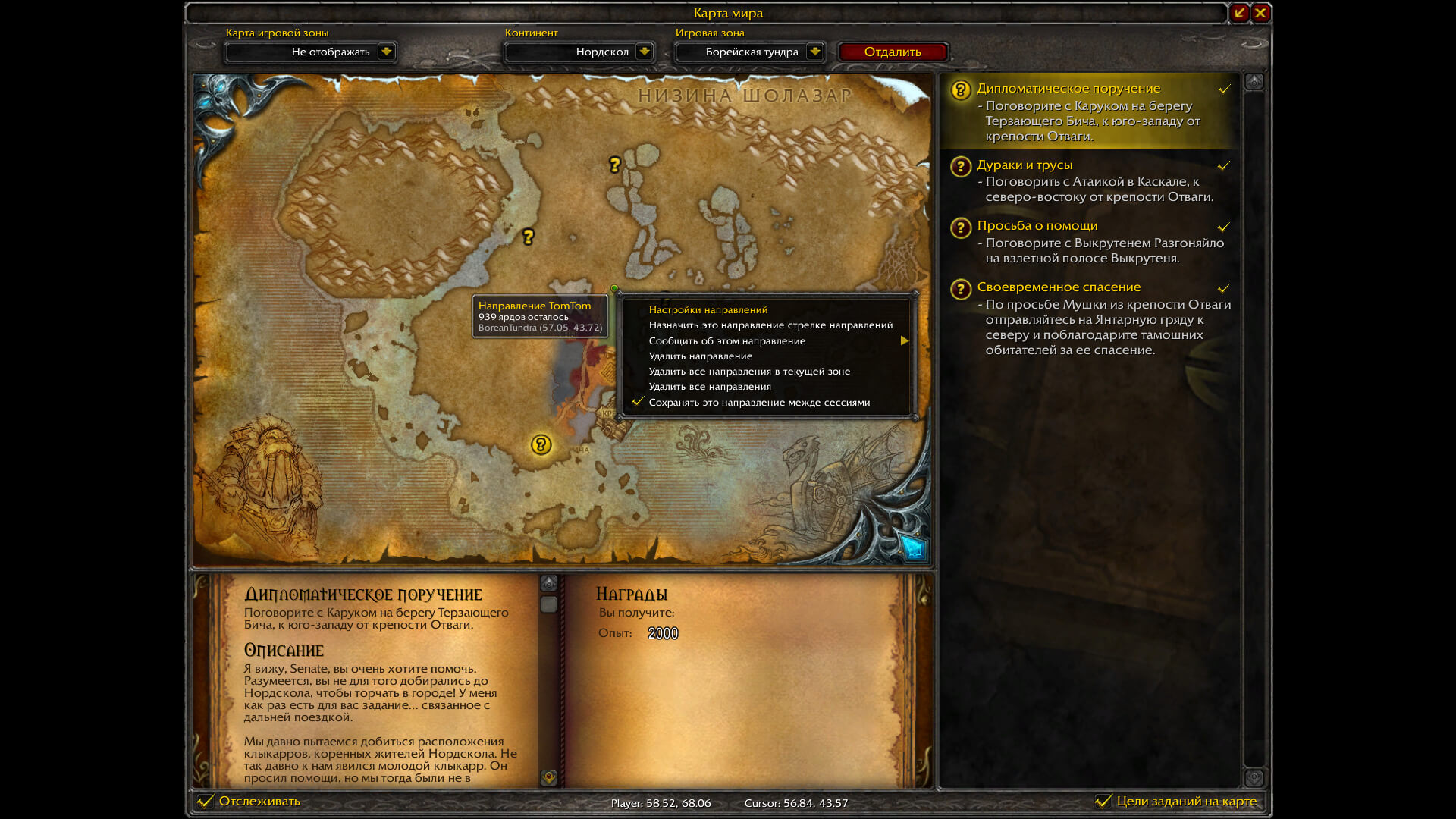
TomTom is a navigation assistant for the WoW WotLK 3.3.5a client. The attached build is the legacy 3.3.5 package with interface version 30300. Its job is to turn map coordinates into visible waypoints, then help you reach them without keeping the coordinate pair in your notes.
Waypoints and coordinates
A waypoint stores an X/Y position together with an optional description and zone. TomTom can show the point on the minimap and world map, and its tooltip can provide the distance to the destination. Several waypoints can be kept at the same time; they are organized by zone and can remain available between sessions when saved waypoint storage is enabled.
The addon also provides player and cursor coordinate displays on the world map. A separate coordinate block can be enabled when you want the current position visible while moving around a zone. This is useful when a guide, quest note, rare-NPC route, or farming route gives coordinates rather than a named map marker.
Navigation arrow
TomTom's Crazy Arrow points toward the active waypoint and displays its description and distance in yards. When distance information is available, the arrow also shows an estimated travel time. The closest-waypoint option can select the nearest stored destination, while arrival and clear-distance settings control when a destination is considered reached or removed from the arrow.
For a route with several points, add each destination with a useful description and use the minimap or world-map icons to choose the next one. The arrow can then be used for the selected point instead of repeatedly opening the map.
Confirmed commands
/way <x> <y> [description]creates a waypoint in the current zone./way <zone> <x> <y> [description]creates a waypoint in a named zone./cwayand/closestwayset the closest stored waypoint as the arrow destination./wayband/waybackcreate a waypoint at the previous location, labelledWayback./way reset <zone>removes the stored waypoints for one zone, while/way reset allremoves all stored waypoints.
Coordinates should be entered as the map's X/Y values, followed by a short description such as “rare spawn”, “quest objective”, or “herb route”. The reset commands are destructive, so use them only when the saved list really needs to be cleared.
Practical WotLK uses
Before a farming session, add the points from the route and use the descriptions to distinguish caves, entrances, or resource clusters. For a rare-NPC hunt, save each reported spawn location and move the arrow to the closest point as you check the zone. When following a quest or class guide, a coordinate copied from the guide can be added directly with /way instead of relying on a separate note window. In a group, the addon also includes waypoint communication options for supported group channels, so a destination can be shared when the corresponding menu action is available.
Settings and saved data
The configuration controls whether waypoints appear on the minimap and world map, whether points from another zone are shown, and whether map tooltips and waypoint menus are enabled. Separate options cover the coordinate displays and the coordinate block. Crazy Arrow settings include enabling the arrow, selecting the closest waypoint, arrival and clearing distances, automatic queue behaviour, scale, and opacity. TomTom keeps its normal settings in TomTomDB and waypoint data in TomTomWaypoints, so removing the addon without preserving its saved variables can remove the stored list.
Limitations and troubleshooting
- If a point is in the wrong zone or the coordinates came from a different map version, the marker can appear in an unexpected location. Check the zone name and compare the coordinate display with the source before adding a long route.
- If the arrow is missing, confirm that the Crazy Arrow is enabled and that a waypoint is active. A waypoint hidden by zone-display settings can also make a route appear empty when you are looking at another zone.
- If
/waydoes not create the expected point, check the X/Y order, use a valid zone name for the zone form of the command, and test one coordinate on the current map first. - Old saved points can make the map or arrow look cluttered. Remove the current point, clear a zone, or reset all points deliberately rather than deleting the whole addon folder.
This is a legacy 3.3.5a addon build. Coordinate placement can differ on private-server map changes, custom quest areas, or data copied from another expansion, so the marker should be verified in-game before it is used as the only navigation reference.
Installation
- Download the ZIP archive from this page and extract the TomTom folder into
World of Warcraft/Interface/AddOns. - At character selection, enable
Load out of date AddOnsif the 3.3.5a client marks the package as out of date. - Log in, enable the map/arrow options you need, and add one test waypoint before importing a larger coordinate route.